Nginx, Varnish and Magento Flow
Having set up numerous servers for Magento stores, I believe that configuring Nginx and Varnish together is one of the most challenging tasks you can face. Instead of diving into the gritty server configuration details here, I want to share the overall Architecture Flow with you. Once you understand how these components interact, troubleshooting server-side issues will become much easier.
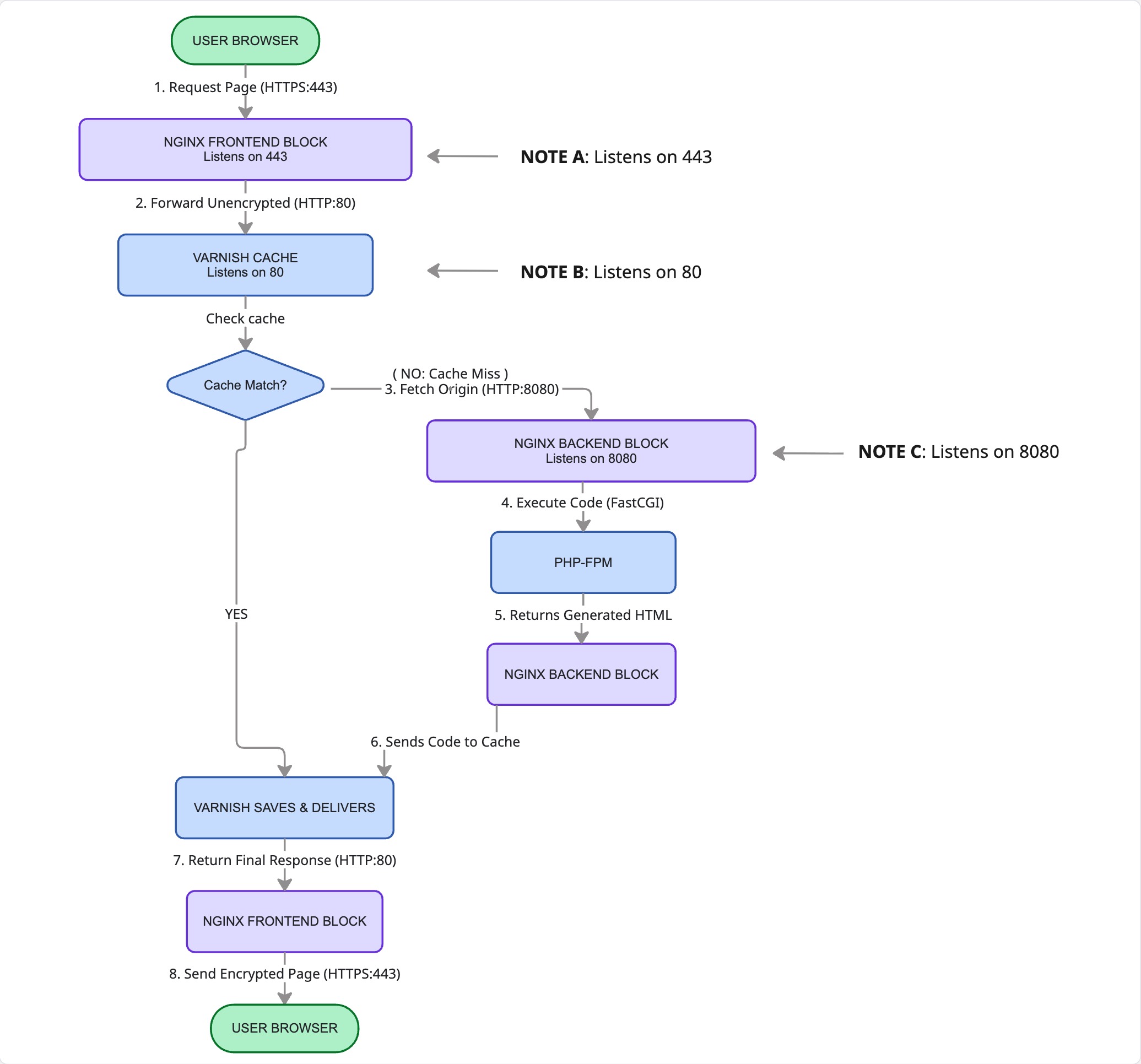
NOTE A: Nginx Frontend (/etc/nginx/sites-available/your_magento.conf)
You can find a sample nginx config under your Magento project.
# Receives all secure public traffic and passes it down to Varnish
server {

    #SSL Ternimation - Decrypt data to pass it to Varnish
    listen 443 ssl;
    server_name mysite.com;

    ssl_certificate /etc/ssl/certs/mysite.crt;
    ssl_certificate_key /etc/ssl/private/mysite.key;

    location / {
        proxy_pass http://127.0.0.1:80; # Points directly to Varnish
        proxy_set_header Host $http_host;
        proxy_set_header X-Forwarded-For $proxy_add_x_forwarded_for;
        proxy_set_header X-Forwarded-Proto https;
        proxy_set_header X-Forwarded-Port 443;
    }
}
NOTE B: Varnish Backend Rule (/etc/varnish/default.vcl)
You need to go to the Magento admin to export the Magento config and replace it with default.vcl
vcl 4.1;

# Configures Varnish to talk to the Nginx backend whenever it misses a cache
backend default {
    .host = "127.0.0.1";
    .port = "8080"; # Loops back to Nginx Backend
}
NOTE C: Nginx Backend (/etc/nginx/sites-available/your_magento.conf)
# Hidden from public access; processes internal requests and speaks to PHP
server {
    listen 8080; # Varnish talks to this port
    server_name mysite.com;
    root /var/www/html/magento2/pub;

    # Include the standard Magento core processing configurations
    include /var/www/html/magento2/nginx.conf.sample;
}
Troubleshooting user permissions across NGINX, Varnish, and PHP-FPM
Troubleshooting user permissions across NGINX, Varnish, and PHP-FPM requires verifying how each service communicates and ensuring they share group permissions to access the web files.
-
Check the Running Users and Groups
# Check NGINX worker user
ps aux | grep nginx | grep -v root

# Check Varnish user
ps aux | grep varnishd

# Check PHP-FPM pool user
ps aux | grep php-fpm
Ubuntu/Debian usually uses
www-data, while CentOS/RHEL/AlmaLinux usesnginxorapache. -
Standardize the Shared Group
To prevent conflict, add all three service users to a single shared primary group (e.g.,
www-data). Add the nginx and varnish users to thewww-datagroupsudo usermod -aG www-data nginx sudo usermod -aG www-data varnish -
Fix PHP-FPM Unix Socket Permissions
Open your PHP-FPM pool configuration (e.g.,
/etc/php/8.x/fpm/pool.d/www.conf)user = www-data group = www-data listen = /run/php/php8.x-fpm.sock listen.owner = www-data listen.group = www-data listen.mode = 0660 -
Correct the Web Root Directory Permissions
NGINX needs directory execution
(x)rights to traverse paths, and both NGINX and PHP-FPM need read(r)rights to process files#Set ownership to web folder sudo chown -R www-data:www-data /var/www/html #Set permissions find /var/www/html -type d -exec chmod 755 {} \; find /var/www/html -type f -exec chmod 644 {} \; -
View Logs
When a request fails, view the logs in the exact path of the execution chain:
- Check Varnish: Run
sudo varnishlog -g requestto ensure it passes traffic to NGINX. - Check NGINX: Inspect
/var/log/nginx/error.logfor upstream permission errors. - Check PHP-FPM: Inspect
/var/log/php8.x-fpm.logfor script-level execution errors.
- Check Varnish: Run